From the Email Users page, click "Add Email User," pick your domain, and enter the local part (the "sam" in sam@yourdomain.com). Winnr generates a strong SMTP/IMAP password automatically. The mailbox is live within a few seconds — export credentials to your sending tool or turn on warming to prep it for real sending.
Naming mailboxes well
The name matters more than most people think. Cold-email spam filters look at signals like:
- Real-sounding names beat generic labels.
sam@yourcompany.comoutperformssales@yourcompany.com. Recipients are more likely to open. Filters are more likely to trust it. - One person, one mailbox. Don't share mailboxes across SDRs — each person gets their own.
- Consistent format across the domain. If sam@yourcompany.com works, alex@yourcompany.com and jordan@yourcompany.com fit the pattern. Mixing sam@ with sales-team@ looks weird.
- Don't repeat local parts across domains. sam@company-a.com and sam@company-b.com is fine; sam@company-a.com and sam@company-a.net is redundant.
For a fresh SDR pipeline you'd typically create: firstname@domain1.com, firstname@domain2.com, etc. — same person, different domains for volume.
What you get in the mailbox
Every mailbox has:
- SMTP credentials for sending (host, port, username, password)
- IMAP credentials for reading replies (host, port, username, password)
- A dedicated password (auto-generated, strong, unique per mailbox)
- SPF, DKIM, and DMARC alignment inherited from the domain — no per-mailbox config needed
- A row in the universal inbox if you turn on inbox sync from Settings
You don't need to configure a mail client (though you can — the credentials work with any). The typical use is to paste them into a sending tool.
What to do right after creating a mailbox
Three options depending on where you are:
- Warm it first. Turn on warming if the domain is fresh (under 3 months old) or the mailbox is going to send more than 20 emails/day. Warm for 2-3 weeks, then start sending.
- Export to your sending tool. If the domain is already aged and warmed, export directly to Smartlead / Instantly / EmailBison / etc. and start sending.
- Both. Most customers create mailboxes, immediately turn on warming, and prepare their campaigns in parallel. When warming completes, they export and launch.
When to add more mailboxes
Rules of thumb for scaling:
- Sending fewer than 25/day per mailbox = you don't need more mailboxes, add capacity instead.
- Sending 25-40/day per mailbox = safe volume for a warmed mailbox on an aged domain. You'll rarely need more than this.
- Sending 40+/day per mailbox = high risk of deliverability degradation. Add more mailboxes/domains instead of pushing volume.
Calculator: How many inboxes do I need?
What's next
- Set up warming — recommended for new mailboxes
- Export to your sending tool — Smartlead, Instantly, EmailBison, etc.
- View replies in the universal inbox — optional but useful
Step-by-step
-
1. Open the Email Users page
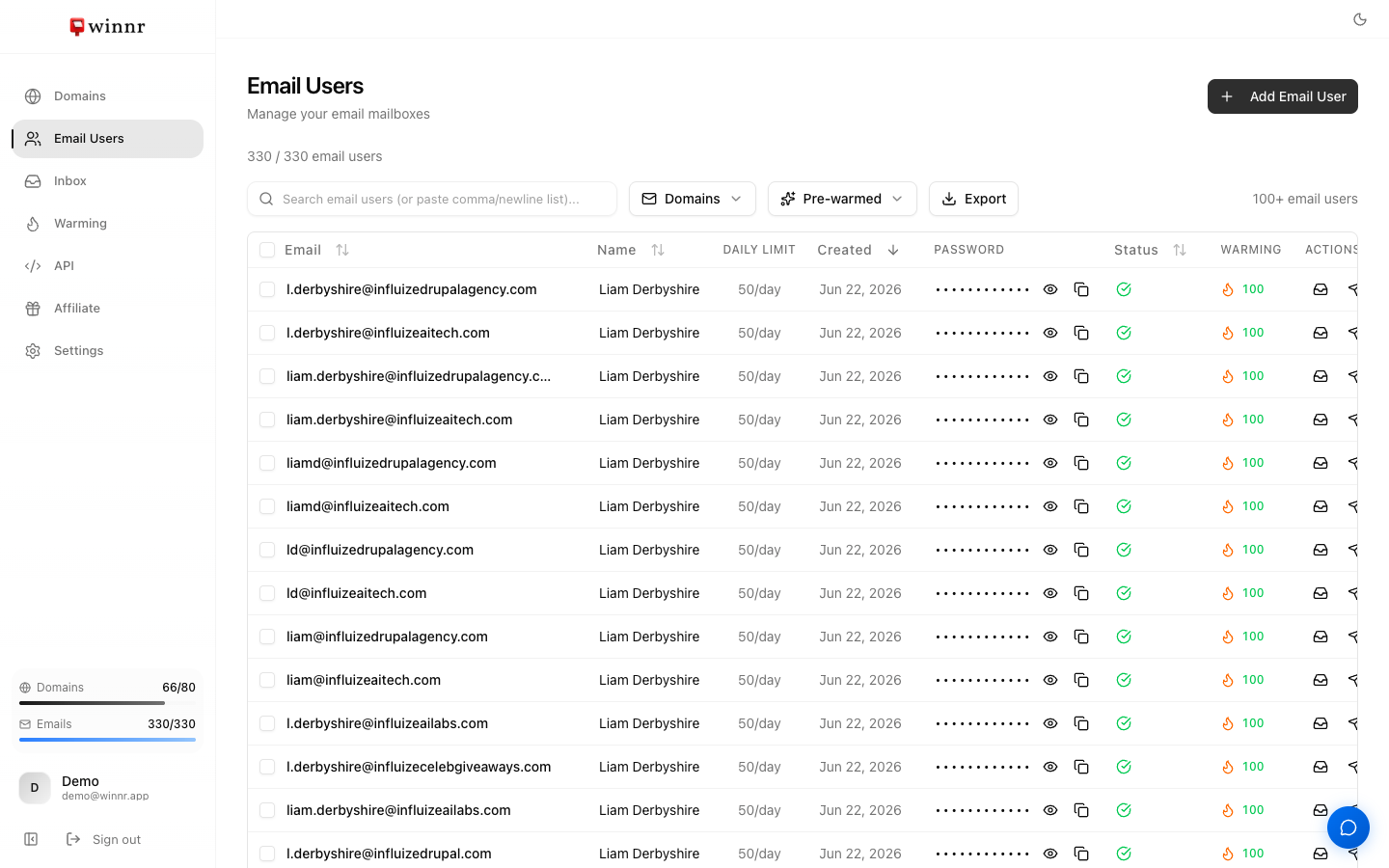
In the sidebar, click "Email Users." This is where every mailbox across every domain shows up, with filtering by domain, tag, warming status, and health. The counter at the top shows how many of your plan's email users you've used.
-
2. Click Add Email User and pick your domain(s)
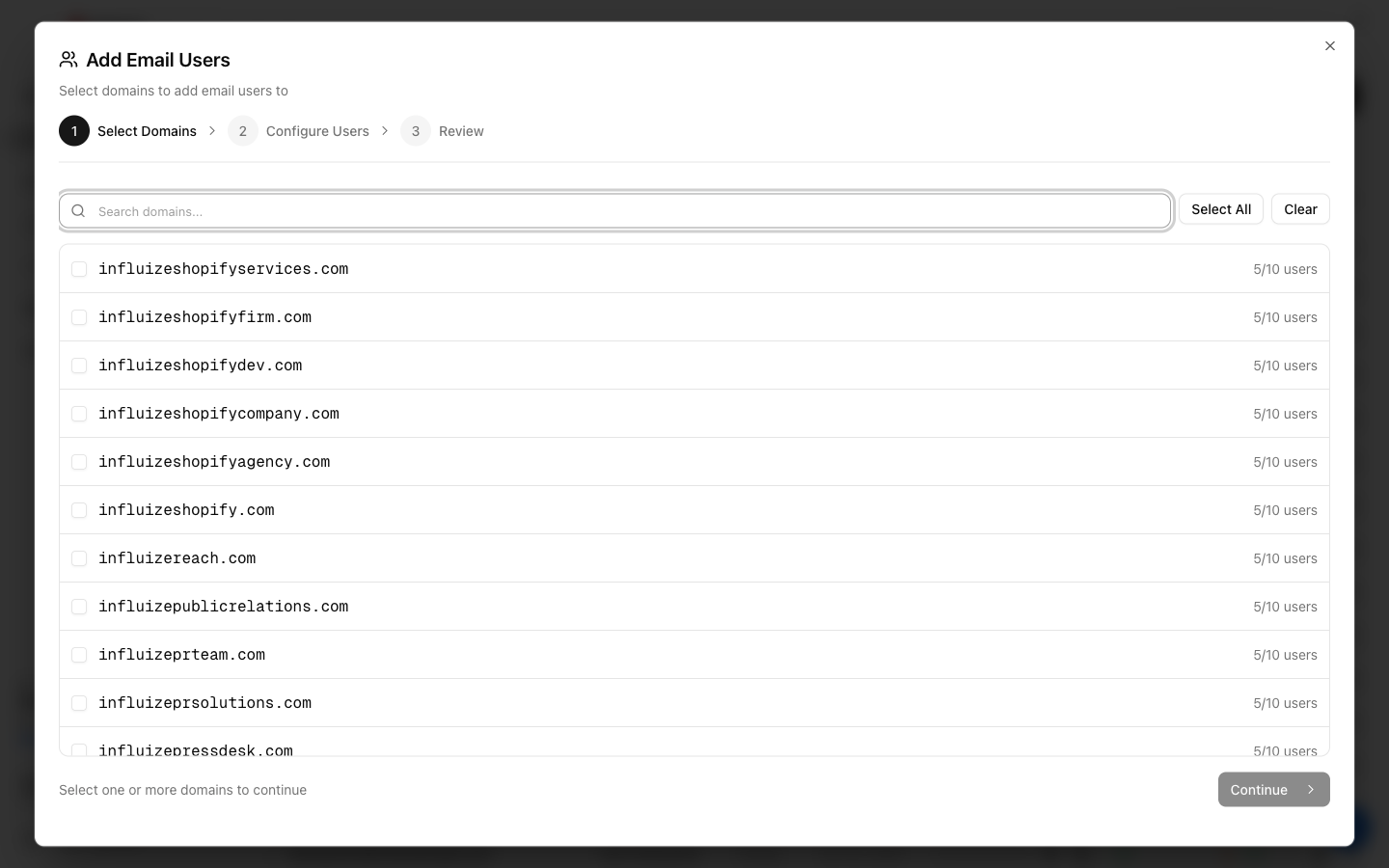
A three-step dialog opens — Select Domains, Configure Users, Review. Check the domain (or domains) you want mailboxes on. Each row shows how many of its 10 mailbox slots are used, so you can see room at a glance.
-
3. Configure the users
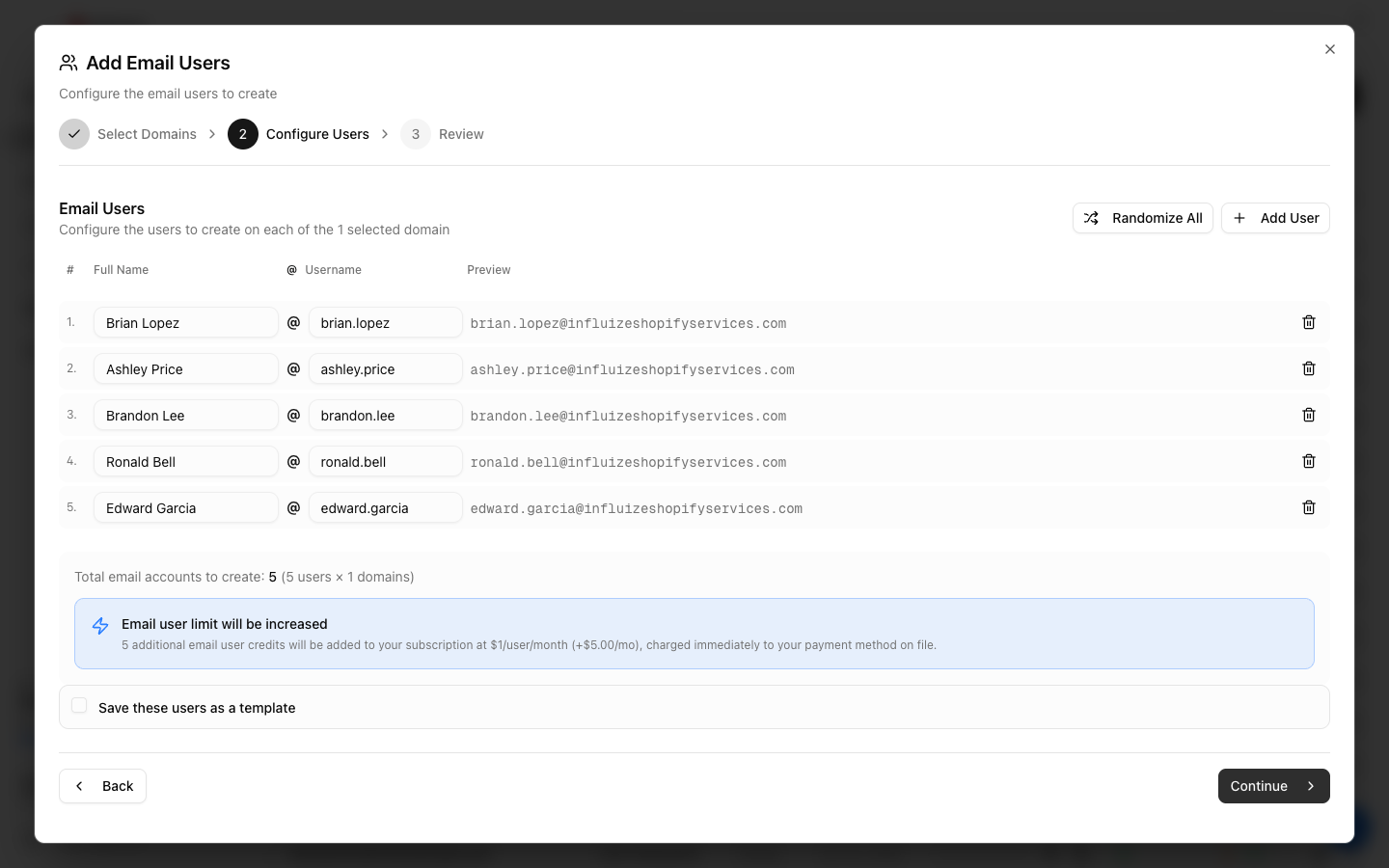
Winnr pre-fills real-sounding names and usernames (like brian.lopez@yourdomain.com) and shows a live preview of each address. Edit any name or username, click Randomize All to reshuffle, or Add User for more. First-name usernames look far less spammy than generic labels like info or sales. If the batch pushes you past your plan's email-user limit, Winnr adds email-user credits at $1/mailbox/month and tells you before you commit.
-
4. Review and create
Confirm the batch on the Review step. Winnr provisions each mailbox and generates a strong, unique SMTP/IMAP password for it in a few seconds. The new rows then appear in your Email Users list, marked Active.
-
5. Grab the credentials
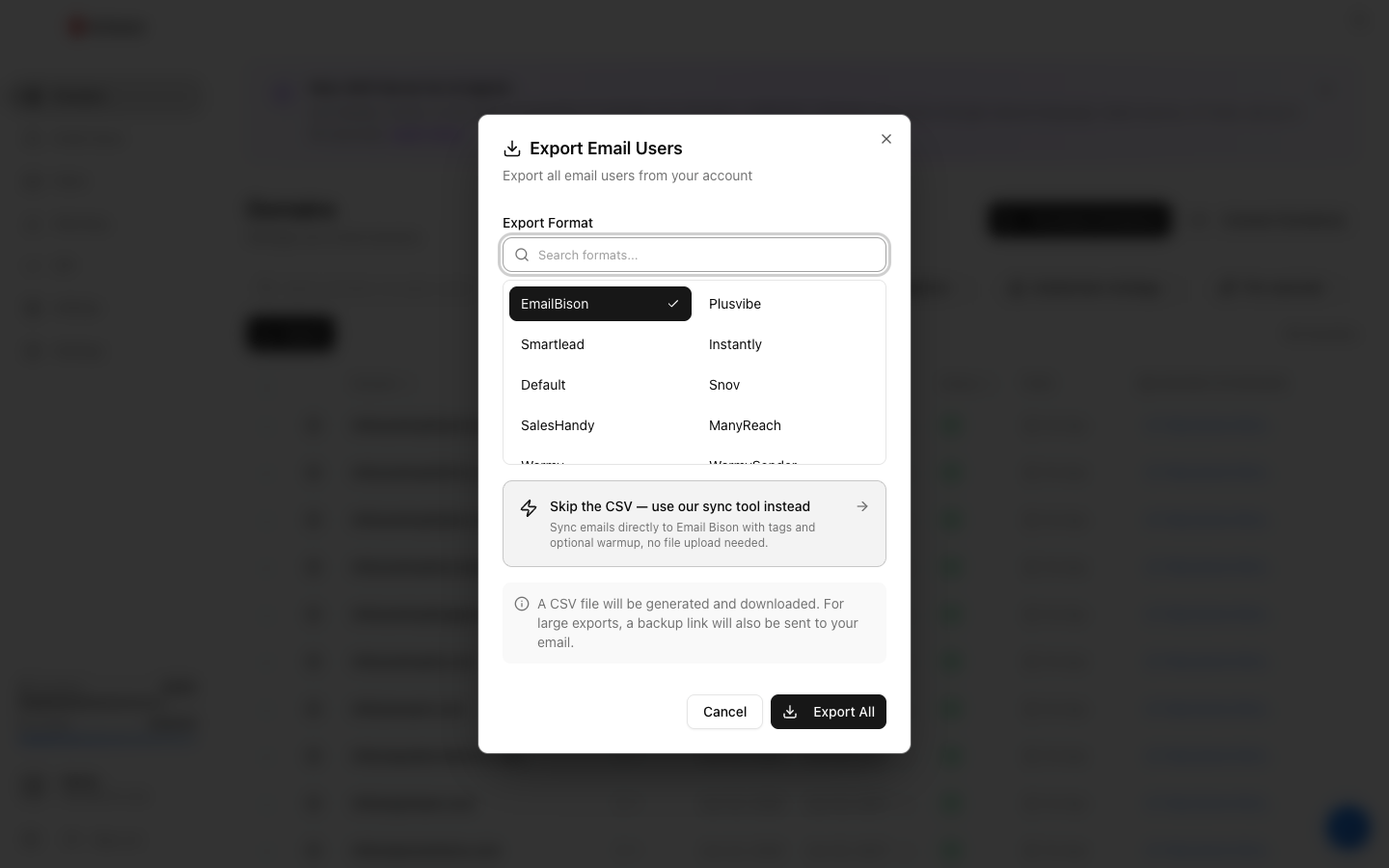
To connect a mailbox to a sending tool, use Export and pick your platform — Winnr generates a ready-to-import file (or, for supported tools, syncs directly, no file needed). Each mailbox's username is its full email address; SMTP is port 465 and IMAP is port 993, both over SSL/TLS.
Frequently asked questions
Can I set the password myself?
Not on creation — Winnr auto-generates so it's guaranteed strong and unique per mailbox. You can rotate later from the mailbox detail panel if needed. The auto-generated password is shown once, then you retrieve it via the export or by clicking "Reveal" on the mailbox row.
How many mailboxes can I create per domain?
Up to 10. This is a mail-provider best-practice limit — going past 10 mailboxes on one domain increases spam-filter suspicion. If you need more sending capacity, add more domains instead.
What if I use a name that's a common spam trigger?
Winnr doesn't restrict names, but you should — avoid "sales," "marketing," "info," "noreply," and similar. First names (sam@) or first+last (samchen@) look best.
Should I warm the mailbox before sending?
Yes, unless the domain is already aged 3+ months and you're only sending small volumes. Warming ramps the mailbox gradually so it doesn't trigger new-sender filters. Turn it on from the Warming page. Costs $0.60/mailbox/month.
Can I move a mailbox to a different domain?
No — mailboxes are tied to the domain they're created on. Delete and recreate on the new domain if you need to move.