From the Domains page, click "Purchase Domain(s)" to buy a fresh domain through Winnr — registration and all DNS records are set up for you in about two minutes. Or click "Connect Domain(s)" to bring a domain you already own: the simplest way is to point that domain's nameservers at Winnr so Winnr manages the whole zone (a manual record-by-record option is also available). Both paths end in the same place — an active domain ready for mailboxes.
Two paths, one outcome
Both purchase and connect end with a domain in "Active" status, DNS set up, ready for mailboxes. The tradeoffs:
- Purchase is faster (a few minutes end-to-end). Winnr registers the domain and creates every DNS record automatically. Ideal for domains you're only using for cold email.
- Connect brings a domain you already own. The cleanest way is to point its nameservers at Winnr so Winnr manages the zone; you keep ownership at your registrar. Better if you're using the domain for anything else, or you have strong registrar preferences.
You don't have to pick — most customers do both. Purchase a few sending domains through Winnr for outbound, connect their main brand domain for the occasional high-touch send.
Naming your domains
For cold email, domain names matter less than you'd think. Recipients rarely notice the exact domain — they notice the sender name, subject line, and reply-to. Pick something that:
- Reads clean.
hello-yourcompany.comlooks less like a burner thany0url33kcompan5.xyz. - Is related to your brand.
getyourcompany.com,try-yourcompany.com, oryourcompany-team.comare all fine. - Is a .com, .co, .org, or .net. These are the extensions Winnr registers, and they have the best deliverability track record.
Avoid obvious brand look-alikes (trademark trouble) and hyphens in every position (looks spammy).
What Winnr does behind the scenes
For a purchase:
- Registers the domain for you (spaced a few minutes apart across a multi-domain order).
- Creates the full DNS record set: an inbound A record, MX at
10 inbound.yourdomain.com, an SPF record ending in-all, a DKIM key atdkim._domainkey, and a DMARC policy ofp=rejectwith a reporting address. - Creates the mailboxes you configured in the wizard.
- Tracks nameserver delegation so you can monitor DNS health from the Domains page.
For a connect (nameserver method):
- Generates a DNS zone for your domain and gives you the nameservers to set at your registrar.
- Once delegation propagates, writes and maintains the same MX/SPF/DKIM/DMARC records automatically.
- Flips the domain to Active and tracks its delegation health from then on.
Either way, you don't have to think about SPF alignment, DKIM keys, or DMARC syntax — that's all handled.
What's next
- Create your first mailbox on the domain
- Understand DNS providers and the connect options
- Domain stuck in provisioning? Troubleshoot
Step-by-step
-
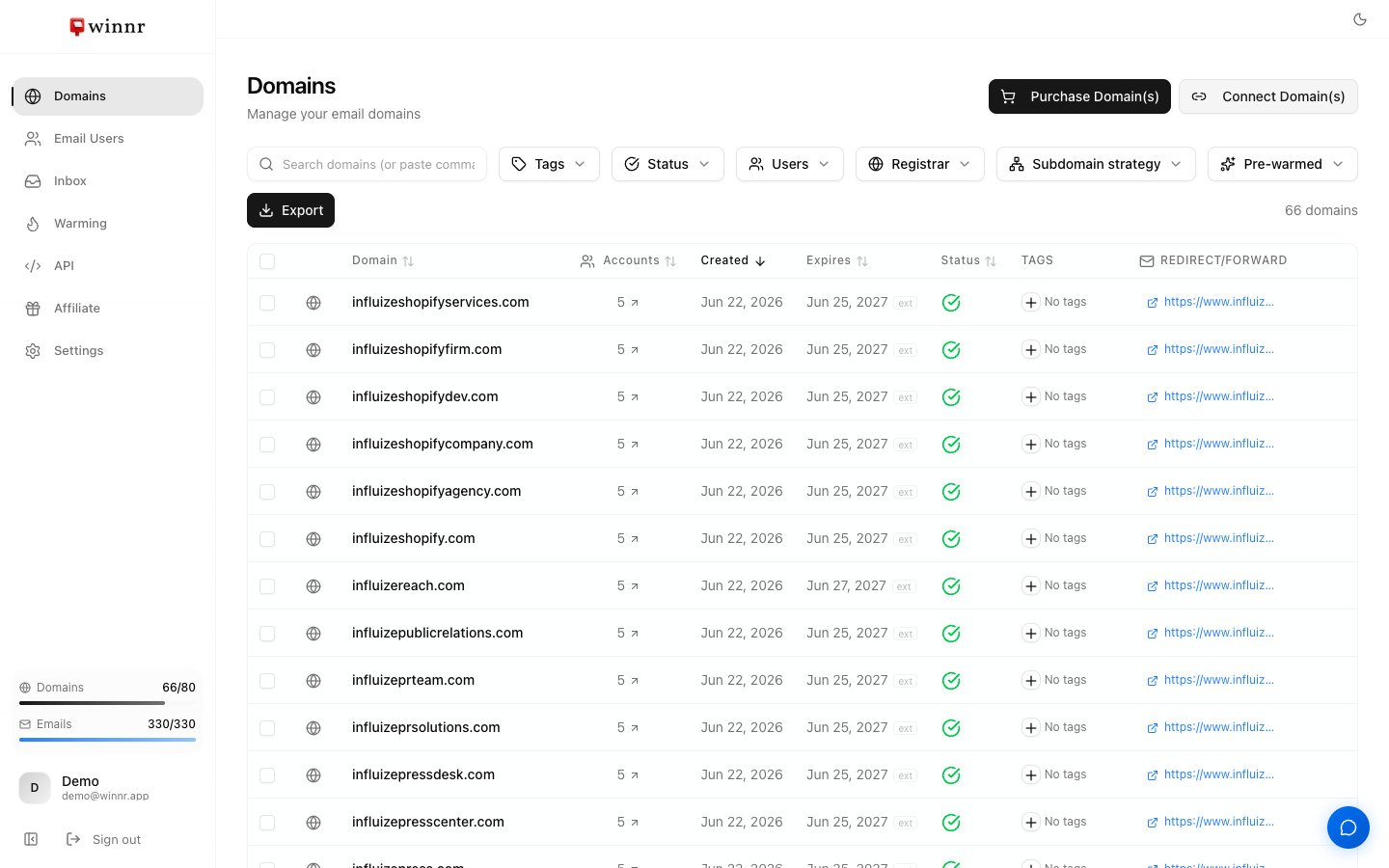
1. Open the Domains page
From the sidebar, click "Domains." This is the hub for everything domain-related — purchasing, connecting, DNS health, tags, redirects, and warming all live here.
-
2. Decide — purchase or connect?
Purchase means Winnr buys a fresh domain and sets up DNS for you — the fastest path, best when you don't care about the exact name. Connect means you already own the domain (from another registrar, or one you use for your website) and you point it at Winnr. Most customers do both: purchase a few sending domains, connect their main brand domain.
-
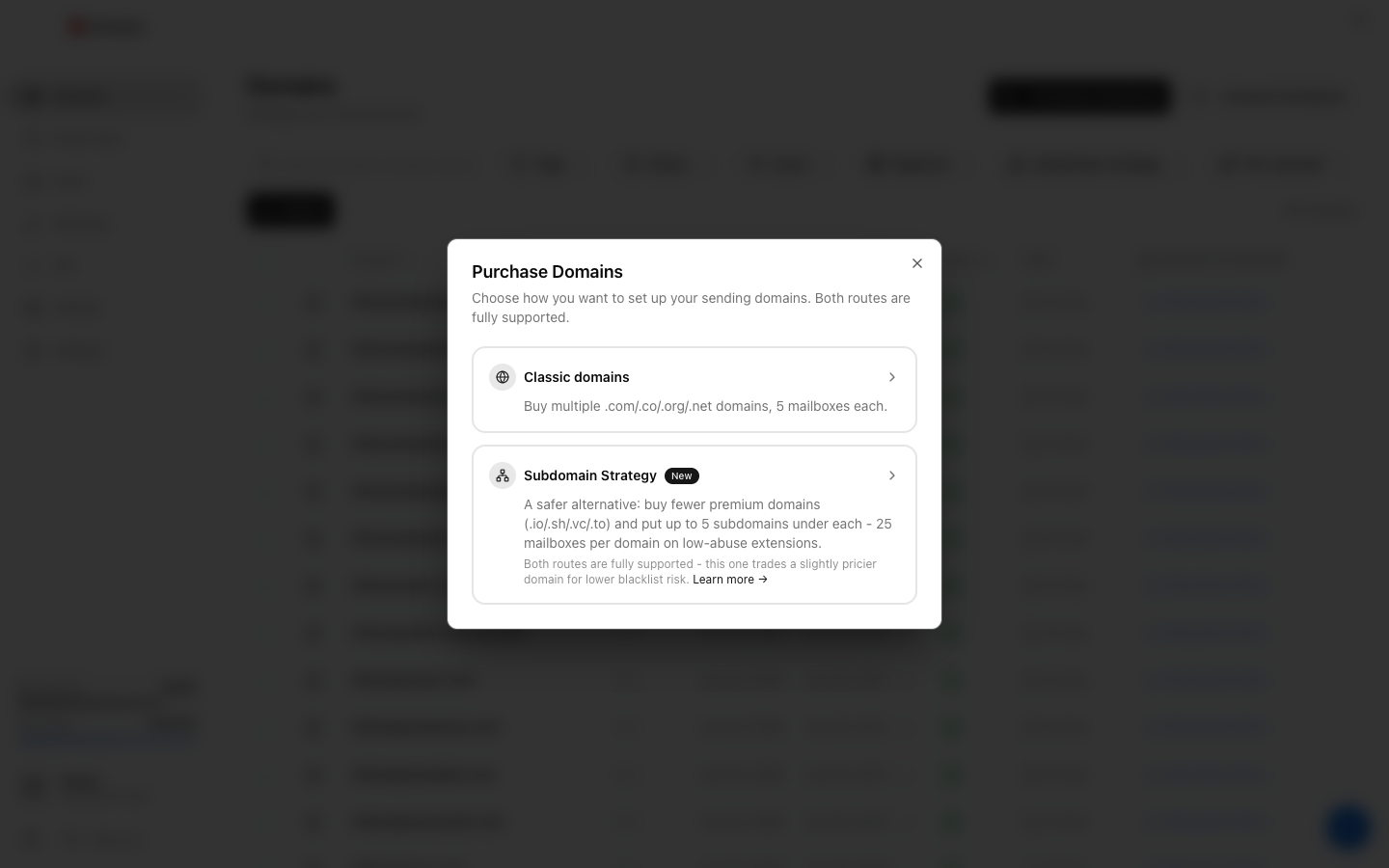
3. To buy a fresh domain — pick the Classic route
Click "Purchase Domain(s)." Winnr offers two routes — Classic domains (multiple .com/.co/.org/.net domains) and the Subdomain Strategy (fewer premium domains with subdomains under each). For your first domain, choose Classic.
-
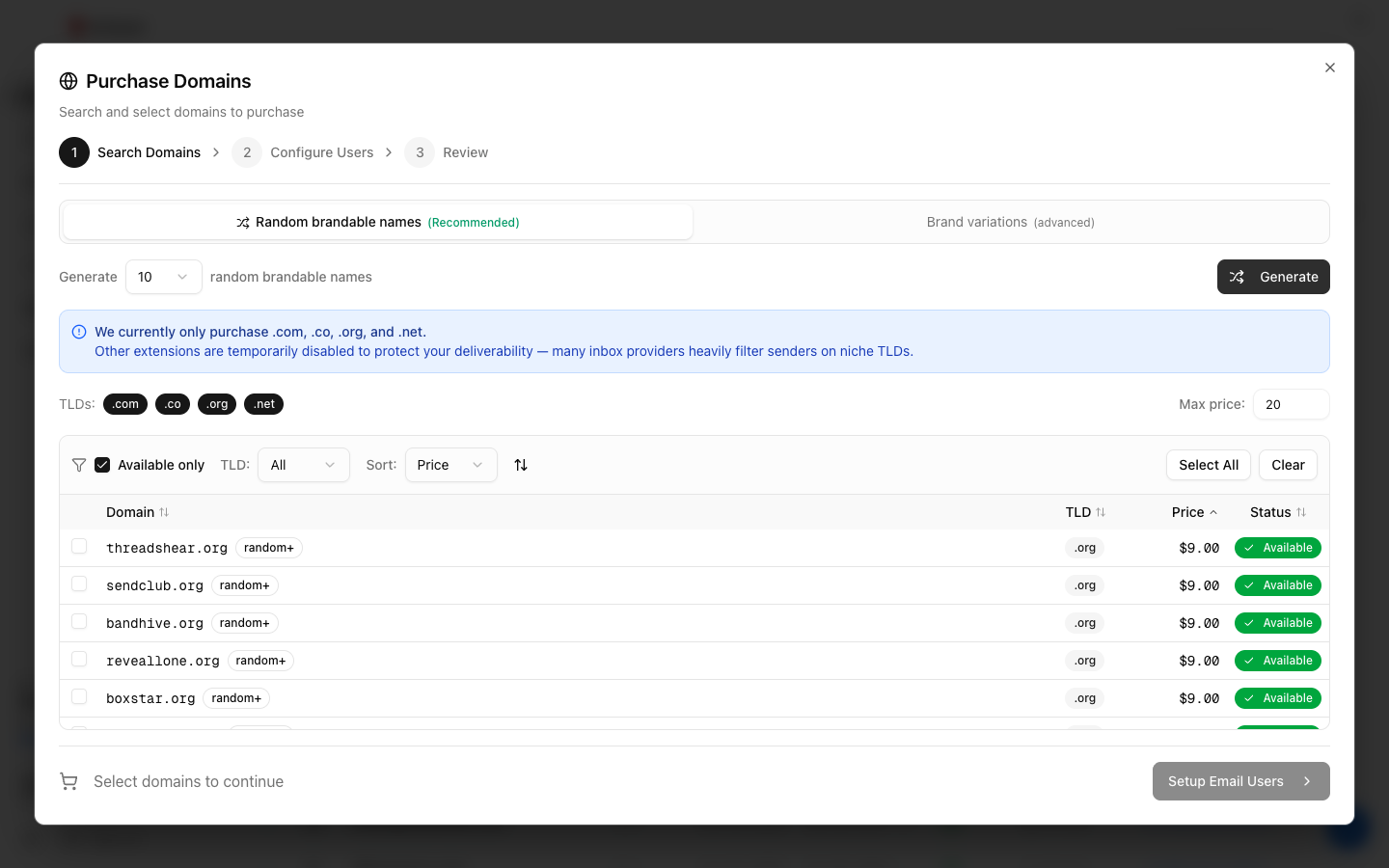
4. Search and select available domains
Generate random brandable names (the recommended default — click Generate) or switch to Brand variations to type your own keyword. Winnr registers .com, .co, .org, and .net only — other extensions are turned off because inbox providers filter senders on niche TLDs. Tick the domains you want (prices are one-time, e.g. ~$9 for .org, ~$13 for .com) and click Setup Email Users.
-
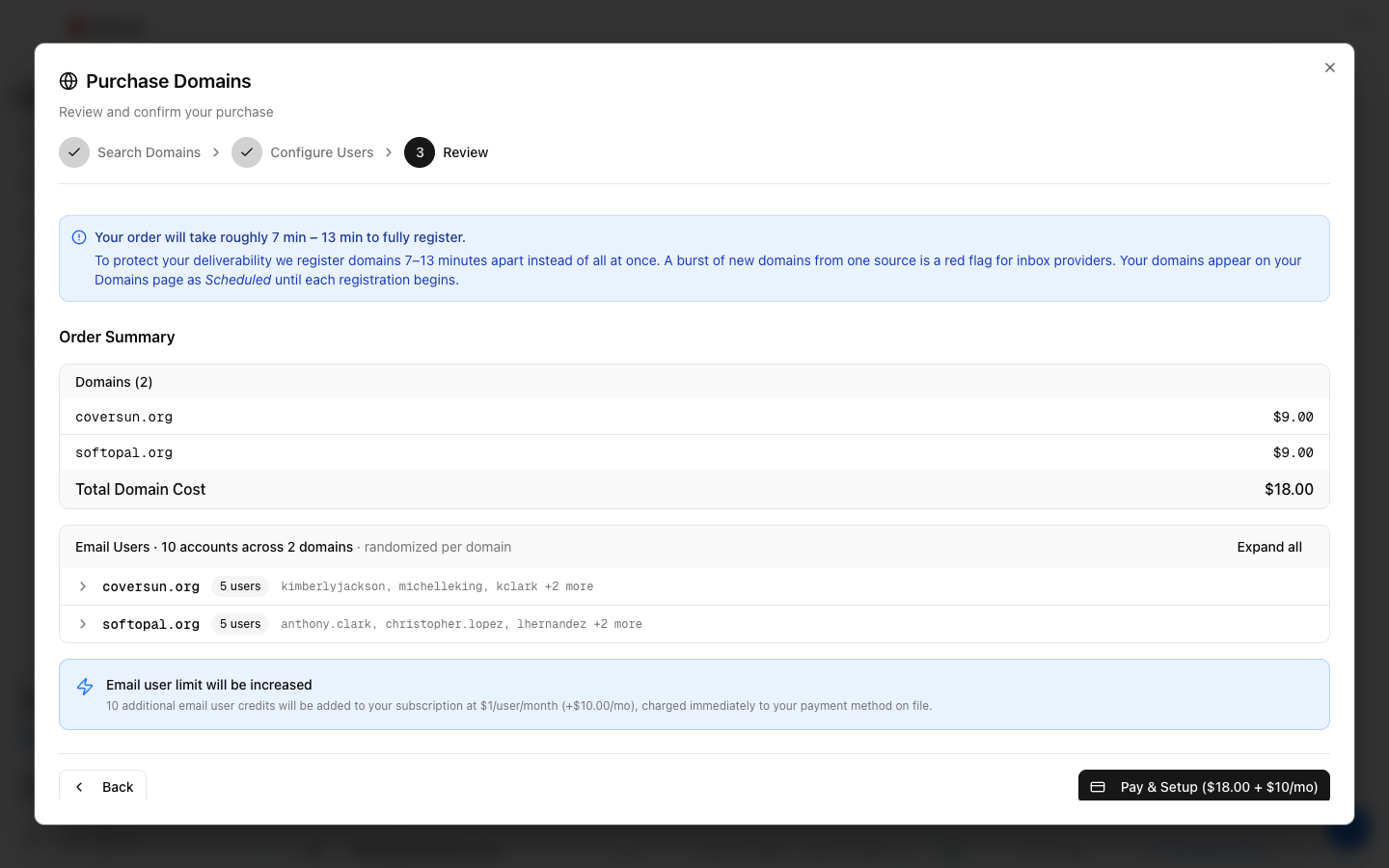
5. Configure the mailboxes, then review and pay
The same wizard also provisions mailboxes on each domain (5 per domain by default, with auto-generated names — adjustable 1-10). The Review step shows the one-time domain total; if the mailboxes exceed your plan's email-user limit, the extras are added as credits at $1/mailbox/month, shown before you pay. After you pay, a single domain is ready in a few minutes; a multi-domain order registers a few minutes apart and shows each domain as "Scheduled" until its turn. See the full purchase walkthrough for details.
-
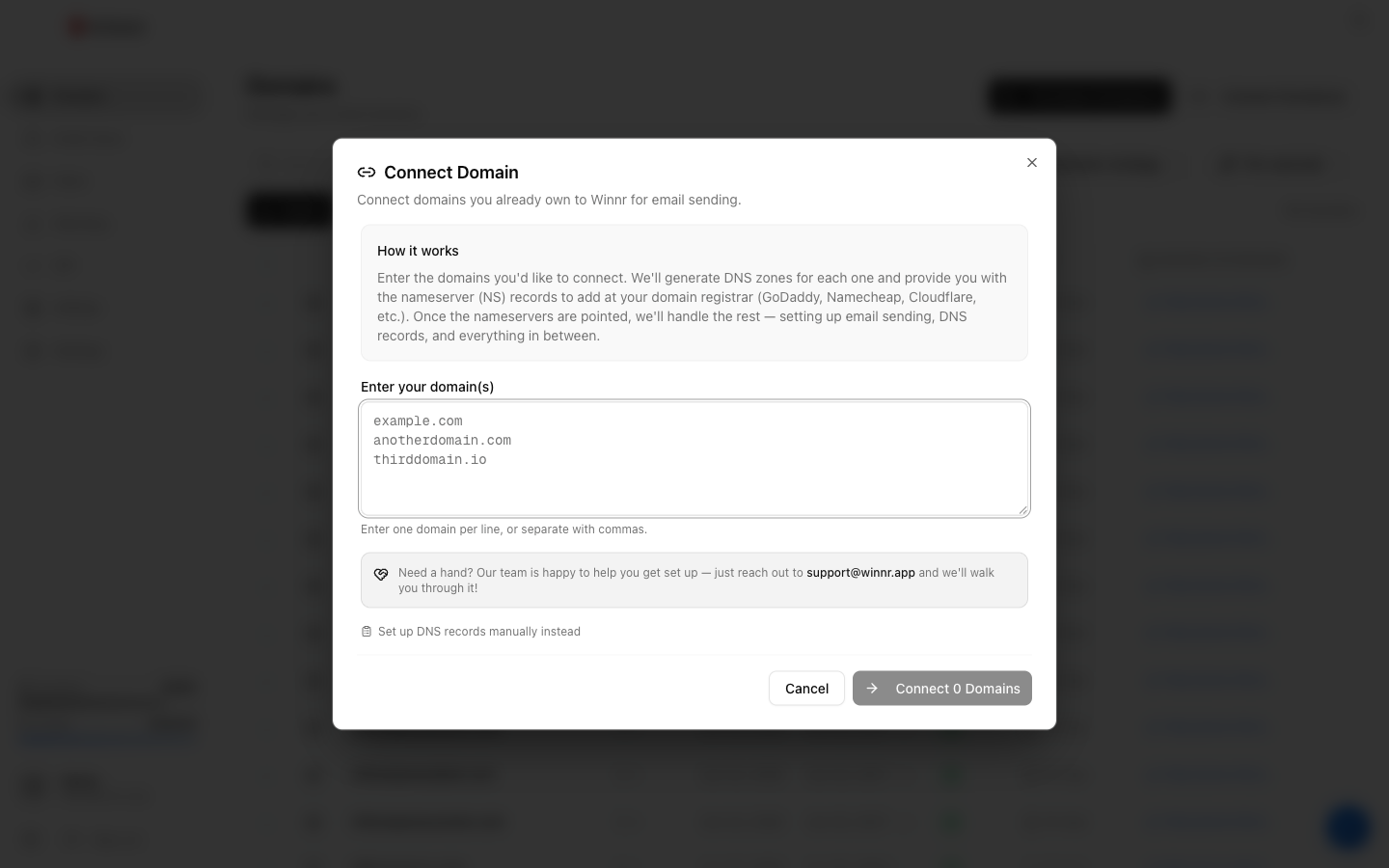
6. To bring your own — click Connect Domain(s)
Enter the domain (or domains) you already own, one per line. Winnr generates a DNS zone for each and gives you the nameserver (NS) records to set at your registrar. This is the recommended path: once your nameservers point to Winnr, Winnr manages every record (MX, SPF, DKIM, DMARC) for you and keeps them correct.
-
7. Point your domain to Winnr
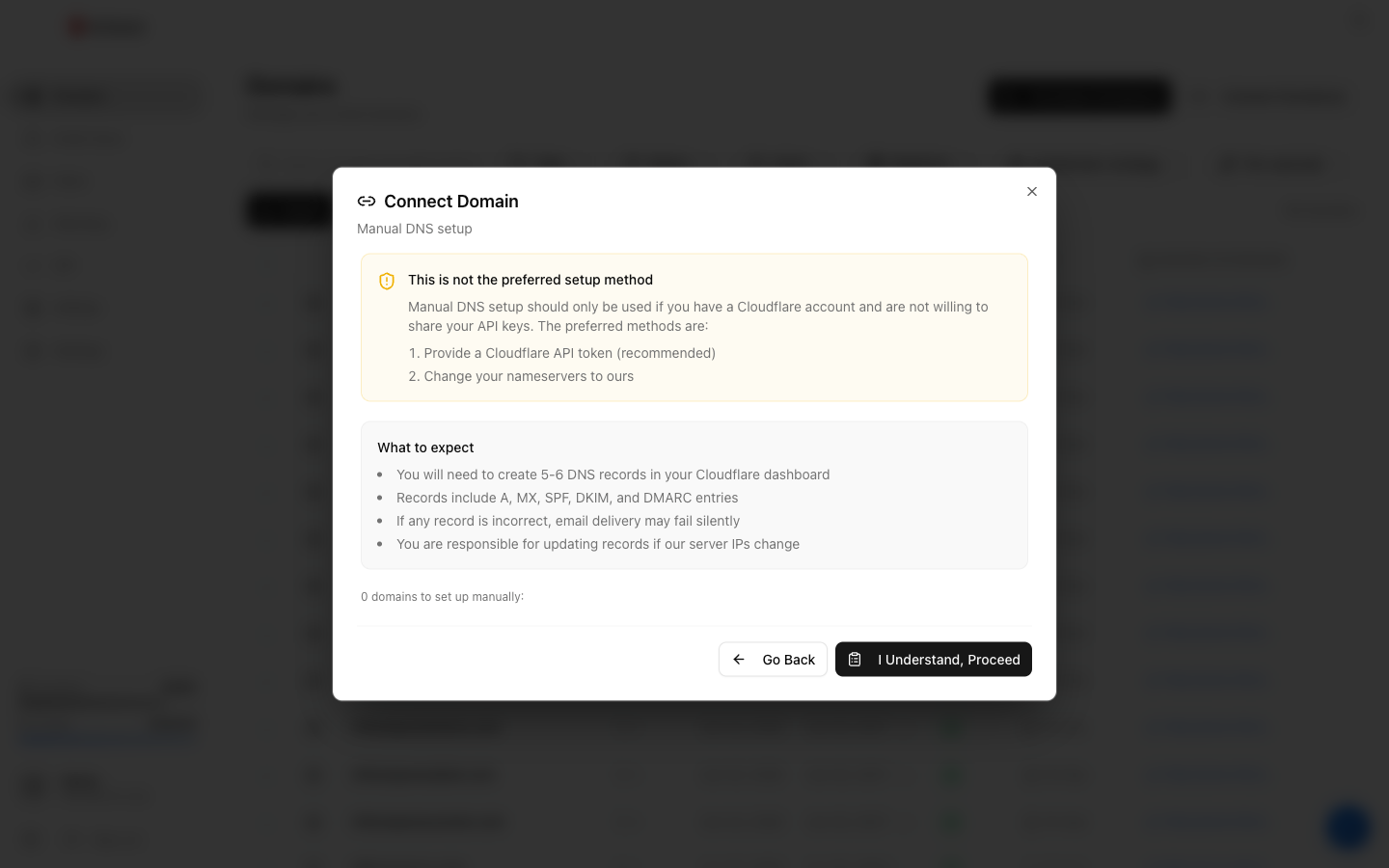
The standard method is to change your nameservers to Winnr's at your registrar. One exception: if your domain is registered at Cloudflare (those can't change nameservers), Winnr detects it and asks for a Cloudflare API token instead, then writes the records into your Cloudflare zone. A fully manual option also exists — you create the handful of records (A, MX, SPF, DKIM, DMARC) yourself — but it's the last resort, since a single wrong record can fail mail silently.
-
8. Wait for Active status
The domain row shows a status indicator that moves from provisioning to active. For a connected domain, that happens once the nameserver change propagates (usually well under an hour). Once it's Active, you can create mailboxes on it. Stuck for more than a little while? See the troubleshooting article linked below.
Frequently asked questions
How many domains do I need?
Rule of thumb — 5 mailboxes per domain is the deliverability sweet spot (the hard cap is 10). So to send 300 emails/day at 25 emails/mailbox/day you need about 12 mailboxes, which is 3 domains. The [domain calculator](https://winnr.app/blog/domains_article.html) sizes this precisely.
What TLDs can I buy through Winnr?
The Classic flow registers .com, .co, .org, and .net — the extensions with the best deliverability track record. Premium extensions (.io, .sh, .vc, .to) are available through the Subdomain Strategy. Niche TLDs like .xyz, .top, .info, and .ai aren't offered, because inbox providers heavily filter senders on them.
Domains are a one-time cost, right?
Yes. A domain is a one-time purchase — there's no recurring domain fee and no auto-renewal to manage. If you ever need a domain extended, contact support@winnr.app.
Can I connect a domain I already own from Winnr?
Yes — use "Connect Domain(s)." If you already own it elsewhere, you don't re-buy it; you point its nameservers at Winnr (or hand Winnr a Cloudflare API token) and Winnr takes over the DNS.
Do I have to move my nameservers?
It's the simplest method and the one we recommend, because Winnr then manages every record for you. If you'd rather keep your nameservers where they are, you can either give Winnr a Cloudflare API token (Cloudflare DNS only) or add the records manually at your provider.